
Right Seat
A virtual first officer for Microsoft Flight Simulator 2024, beside the sim on your iPad, and calling you back on your iPhone and Apple Watch.
Screenshots
-
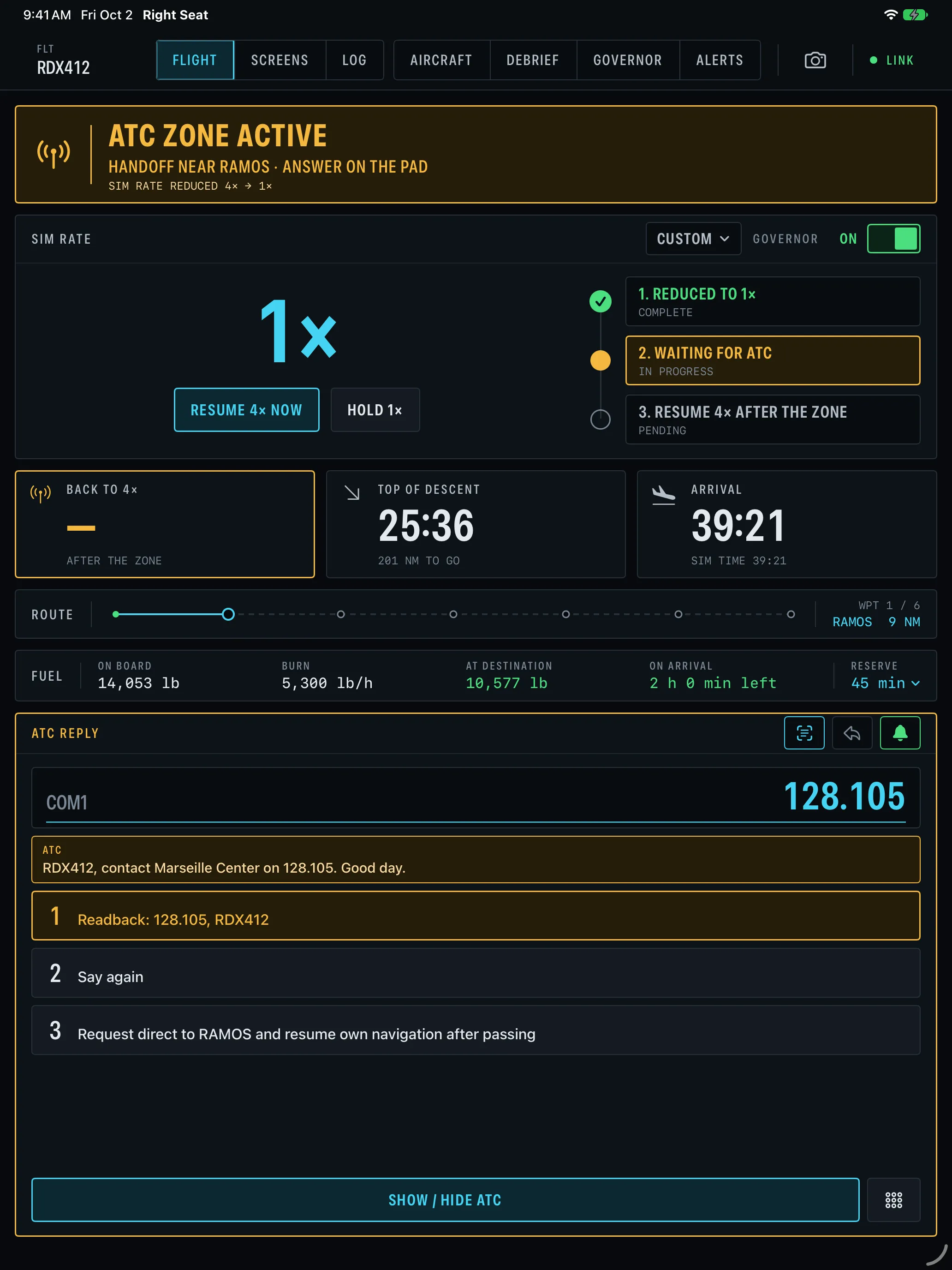
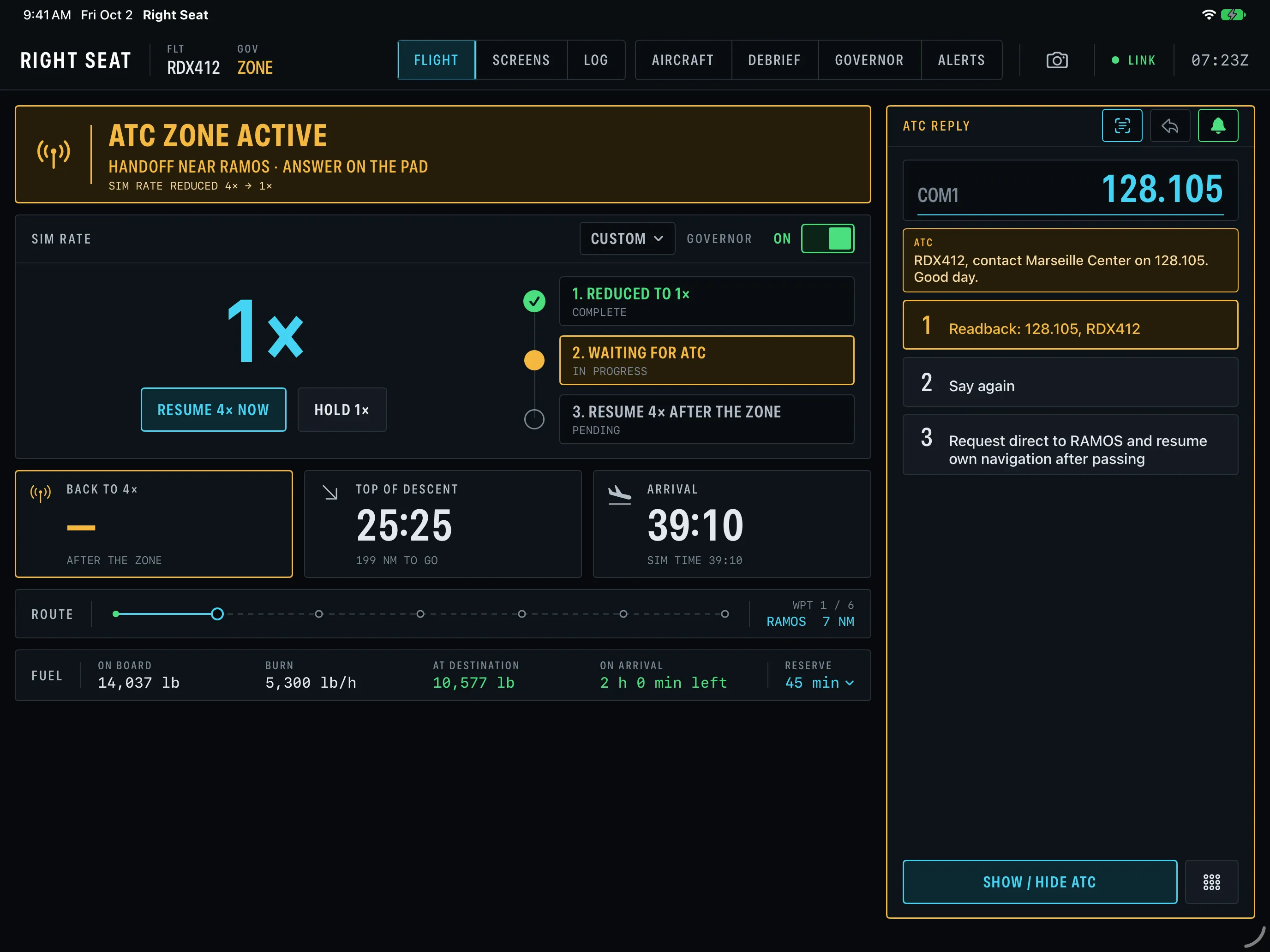
Flight Deck -
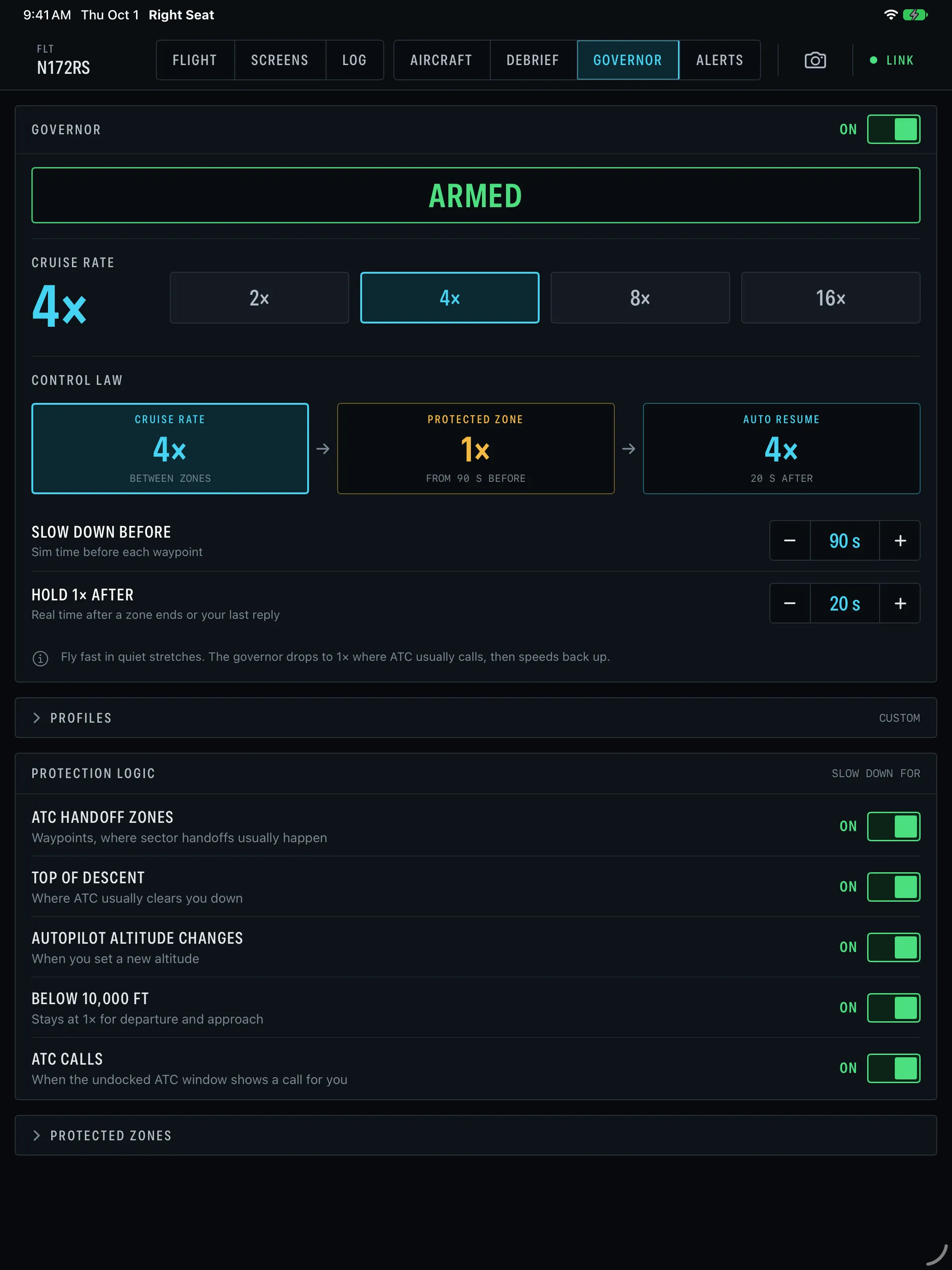
Governor -
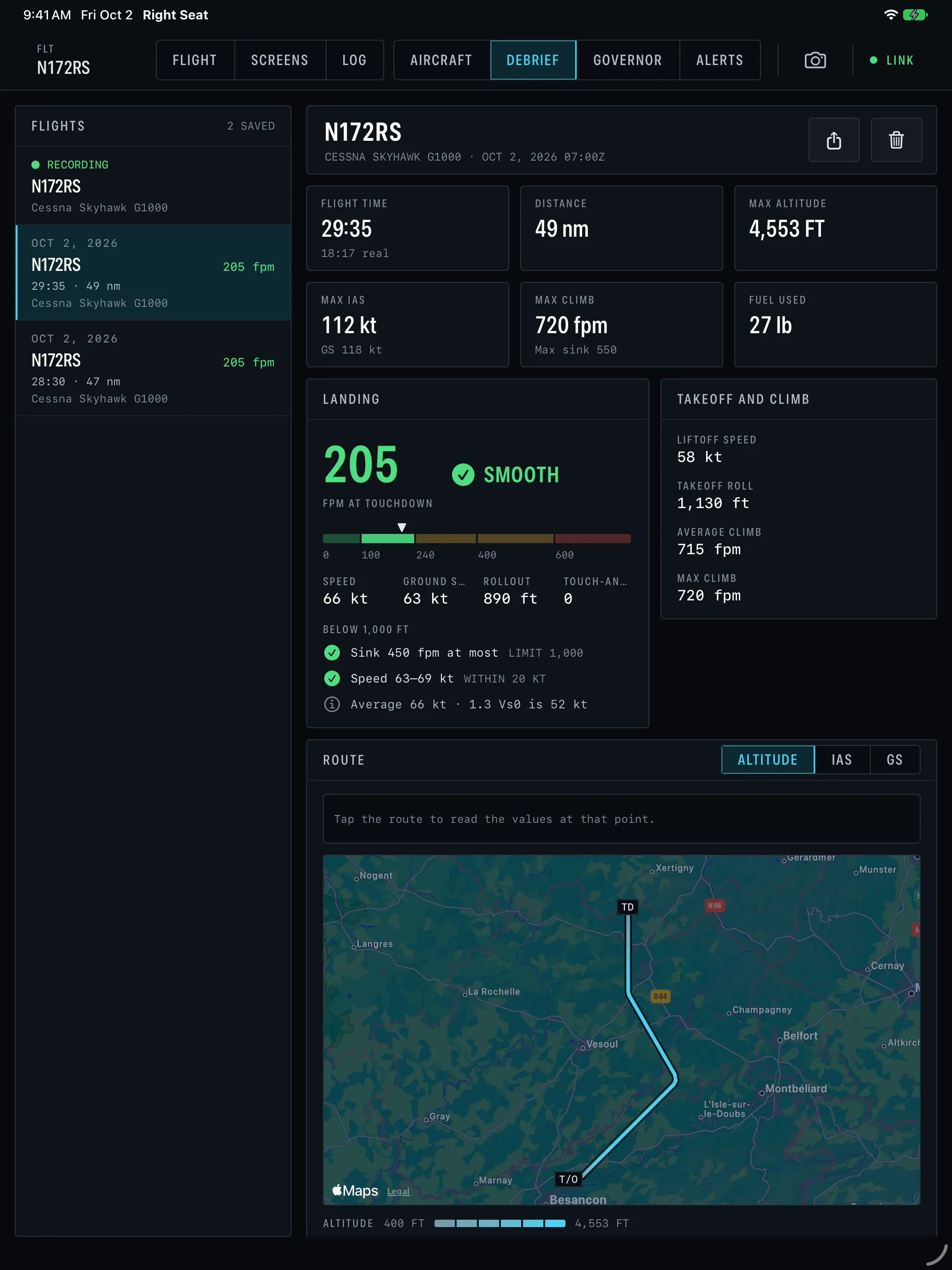
Debrief -
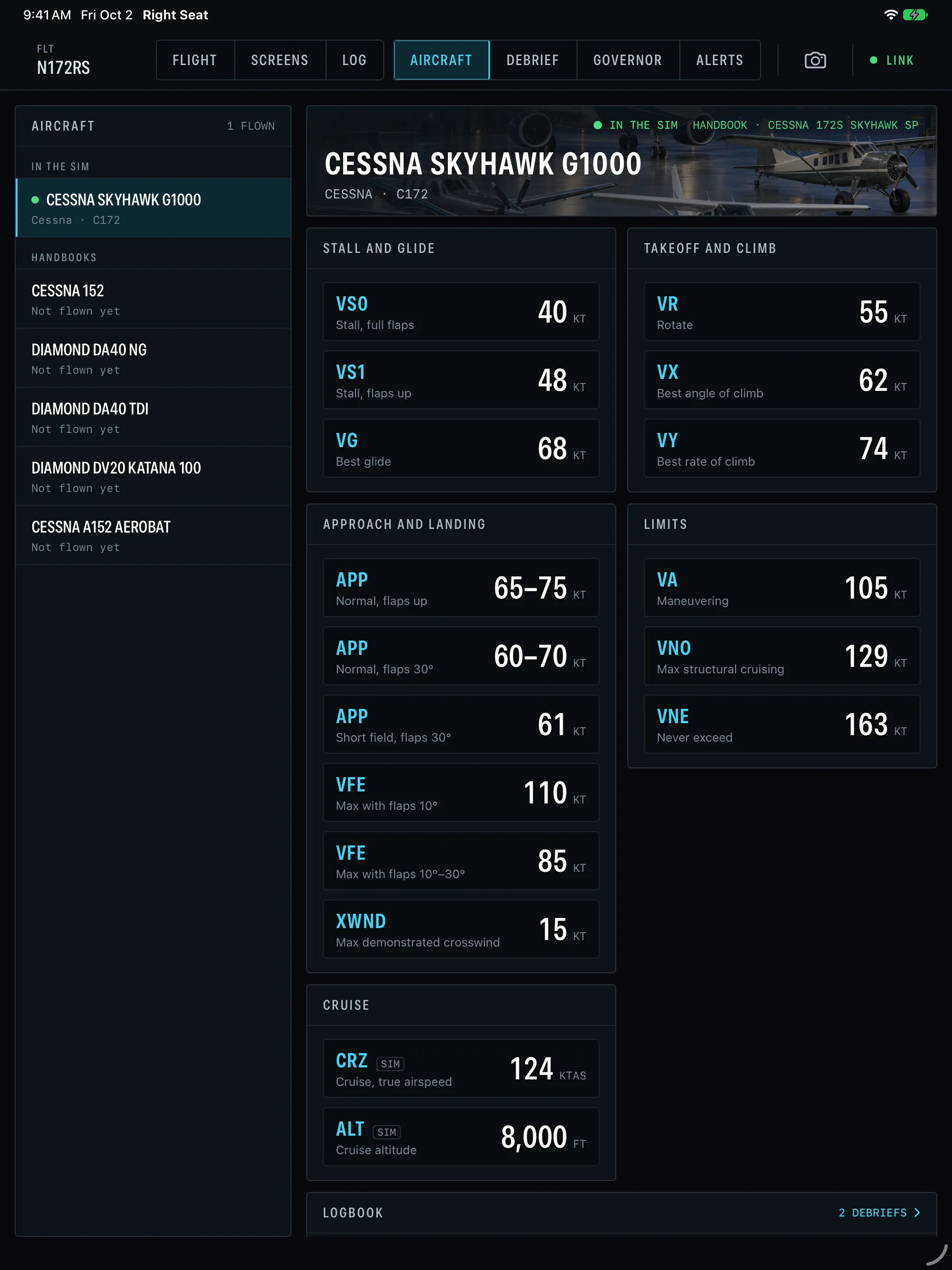
Aircraft Cards -
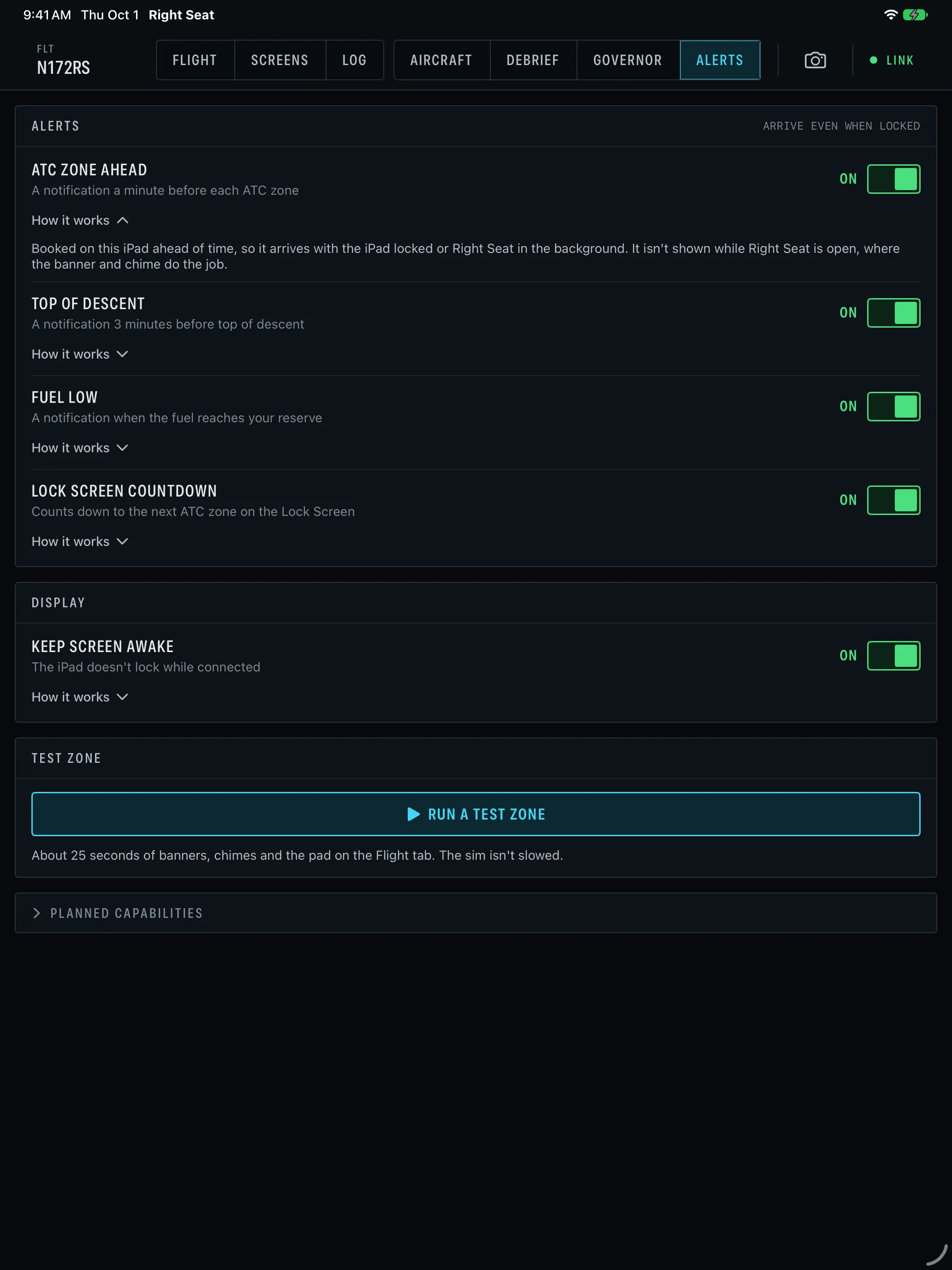
Alerts -
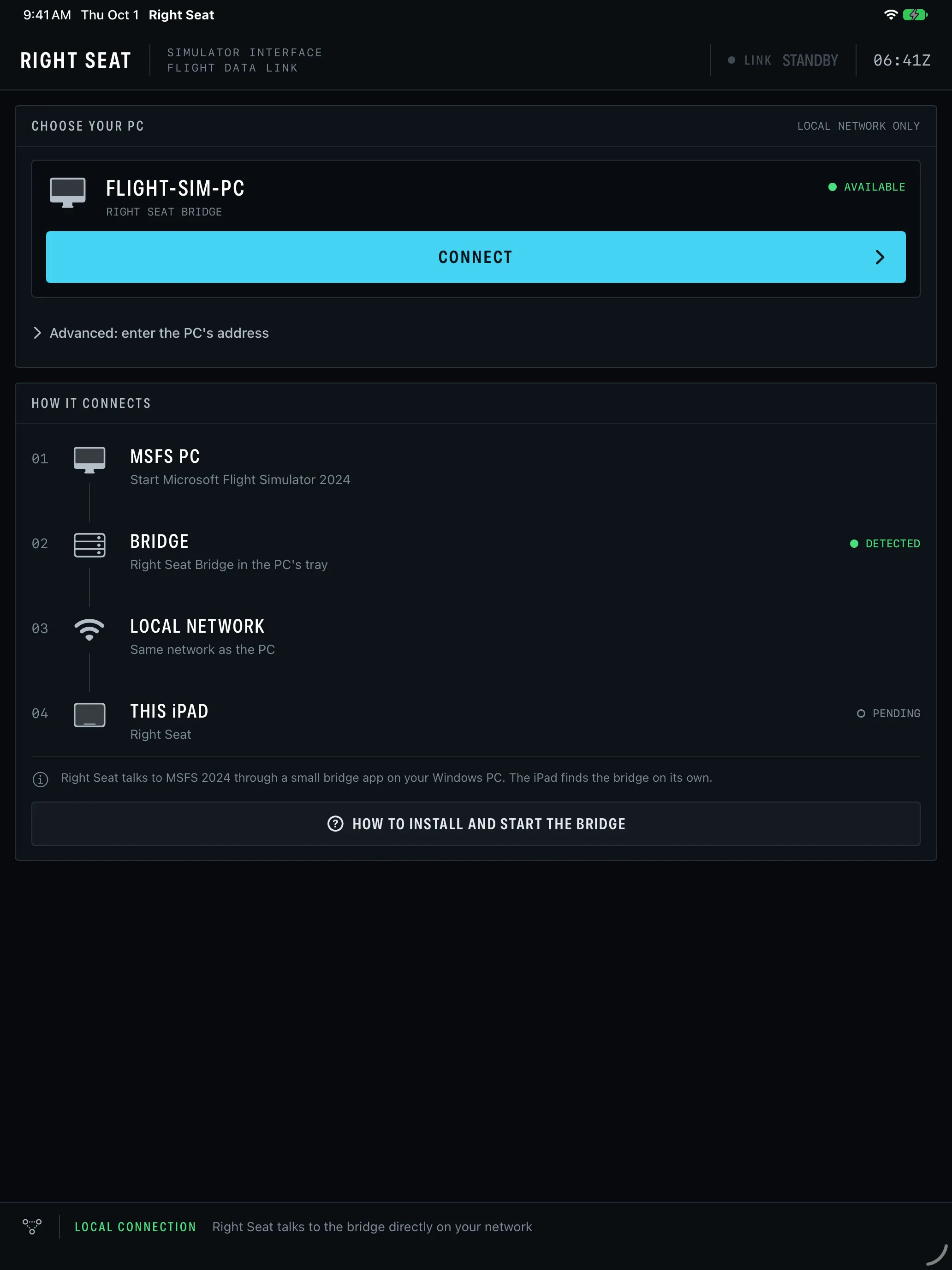
Connect
Long flights, without missing the parts that matter: Right Seat watches the flight and calls you back when it needs you.
- Real time, or sim rate. Fly every minute at 1×, and Right Seat pauses the sim ahead of top of descent, for the arrival and for ATC calls, so a long leg waits for you. Or let its governor cruise at the rate you choose and drop to 1× for the parts that need you.
- ATC in career mode. Career mode leaves every radio call to you. Pop out the Communication and Mission Steps panels, and Right Seat shows what ATC said, the station and frequency, and the step that's waiting, with a button to answer it.
- Walk-away alerts. On your iPad, iPhone and Apple Watch, even when they're locked: the autopilot dropping out, a stall or overspeed warning, fuel short of the destination, an ATC call waiting, the next slowdown or pause, top of descent, and fuel at your reserve. The bridge sends each one as it happens.
- Countdowns. Real-time countdowns to the next pause or slowdown, top of descent and the arrival, and one on the Lock Screen that stays right when the sim rate changes.
- Map and SimBrief. A moving map with your SimBrief plan and the sim's own flight plan, the next fix, fuel against the plan, and SimBrief's top of descent.
- Checklists. Checklists that tick themselves off from the sim where they can: gear, flaps, lights, the parking brake, the transponder and more.
- Debriefs and a logbook. A debrief of every landing, with the touchdown rate, a stable-approach check and your route on the map, and a logbook with CSV export.
- Aircraft cards. A card for each aircraft you fly, with its handbook speeds, your flights in it and screenshots of the sim.
- Made for iPad, at home on iPhone. The full flight deck on an iPad on its stand beside the sim, and a focused companion layout on iPhone.
What you need
A Windows PC with Microsoft Flight Simulator 2024, Right Seat Bridge on that PC, and an iPad or iPhone on the same network as the PC.
Right Seat talks to the sim through Right Seat Bridge, a small free program that runs in the tray beside MSFS 2024. The iPad or iPhone finds it on your local network by itself. The setup guide takes you through it in four steps, with fixes for the usual network problems.
One app for iPad and iPhone
Right Seat is one app. Get it from the App Store on your iPad or iPhone, and it's yours on every iPad and iPhone signed in to the same Apple Account. There's nothing to buy on the PC or on this website.
Try it without a PC
Tap Try a demo flight on Right Seat's first screen. It flies a made-up cruise from Bern to Barcelona inside the app, so every tab works without a PC or the sim. Nothing from the demo is kept.
Alerts while you're away
The alerts come from the bridge, which keeps running next to the sim, so they arrive with your iPad locked, your iPhone in your pocket, or Right Seat not running at all. The PC needs the internet for them: each one goes from the bridge through Apple's push service.
Your Apple Watch shows the iPhone's alerts by itself. Allow Right Seat in any Focus you fly with, such as Sleep, or the alerts arrive silently.
Refunds
App Store purchases are refunded by Apple, at reportaproblem.apple.com. If Right Seat won't connect or something's broken, email first: a fix is usually faster than a refund.
Not affiliated with Microsoft or Garmin
Right Seat isn't affiliated with or endorsed by Microsoft or Garmin. Microsoft Flight Simulator is a trademark of Microsoft Corporation, and Garmin and G1000 are trademarks of Garmin Ltd. or its subsidiaries.
Questions
Does it work on Xbox or PlayStation 5?
No. Right Seat needs Right Seat Bridge, a Windows program that runs beside the sim on the same PC, so it works with Microsoft Flight Simulator 2024 on a Windows PC only.
Does it work with Microsoft Flight Simulator 2020?
No. Right Seat is made and tested for Microsoft Flight Simulator 2024 only.
Can I try it without a PC?
Yes. Tap Try a demo flight on Right Seat's first screen. It flies a made-up cruise from Bern to Barcelona inside the app, so every tab works without the PC or the sim.
Do I need to buy it twice for iPad and iPhone?
No. It's one app for iPad and iPhone, bought on the device from the App Store, and it's yours on every iPad and iPhone signed in to the same Apple Account. The bridge on the PC is free.
Does popping out panels cost frame rate?
It can. Reading ATC in career mode and the Screens tab both need panels popped out of the sim. DLSS frame generation doesn't work while a panel is popped out, and with V-Sync on, the sim can drop to 30 fps. The rest of Right Seat, from the sim-rate governor to the alerts and the map, needs no pop-outs.
Can Right Seat use GlassOut?
No. Right Seat reads the sim's own pop-outs. Panels shown through GlassOut or other capture tools aren't a source for it.
Do the alerts need the internet?
Yes, on the PC. Each alert goes from the bridge through Apple's push service, so with the PC offline they don't reach a locked iPad, your iPhone or your Apple Watch. While Right Seat is open on screen, its banner and chime still work over your local network.
How do I get a refund?
App Store purchases are refunded by Apple, at reportaproblem.apple.com. If the problem is a bug or a connection that won't work, email me first: a fix is usually faster than a refund.
Is Right Seat made by Microsoft or Garmin?
No. Right Seat isn't affiliated with or endorsed by Microsoft or Garmin. It's made by fjell, an independent studio.
More in Support.